About
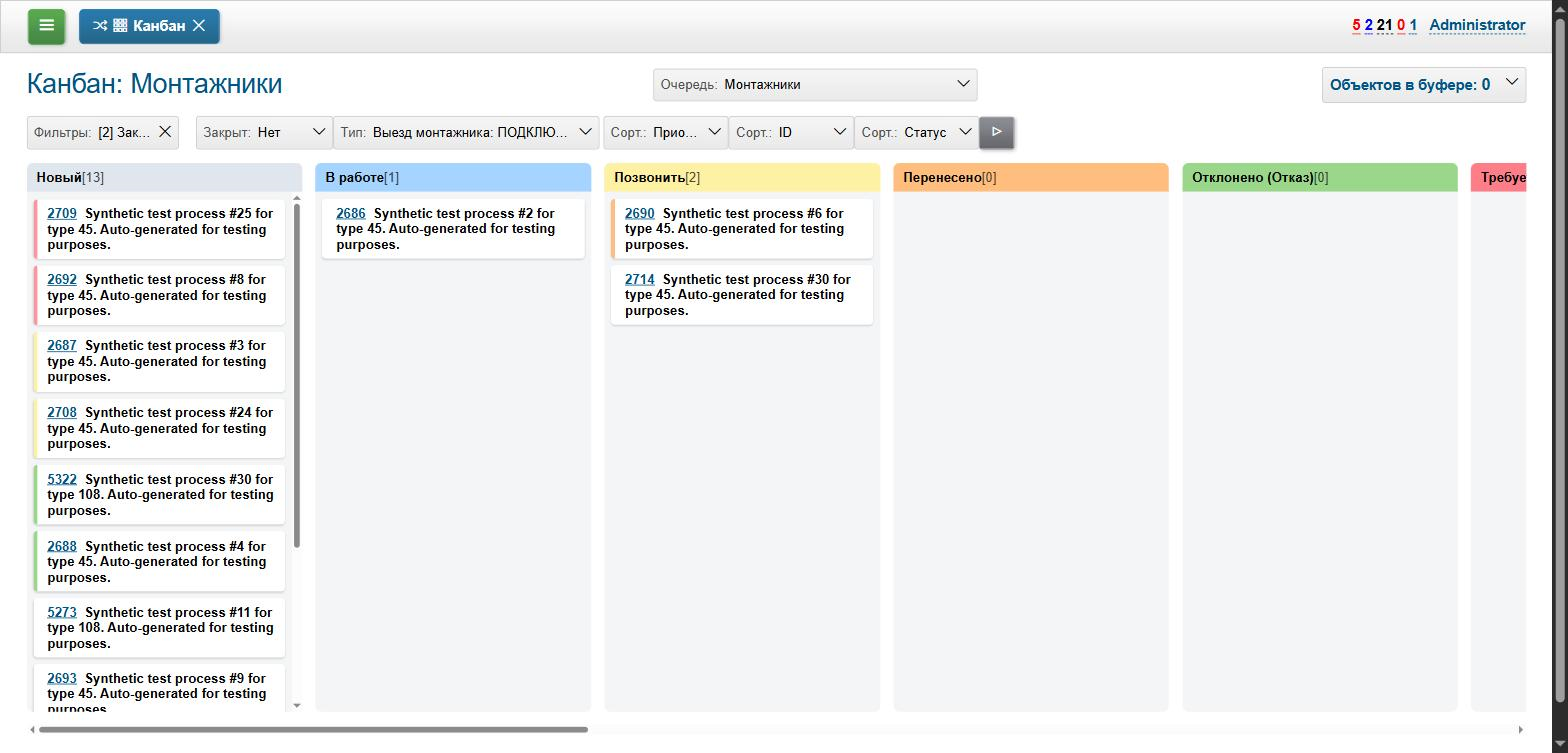
The plugin renders any accessible process queue as a classic Kanban board: columns are the statuses of a single process type, cards are processes, and dragging a card between columns changes the process' status.
Unlike Blow, which visualizes process hierarchy (parent/child) over executor columns, Kanban is a flat, status-driven board - the familiar Kanban/Trello style.
No new workflow logic is introduced by the plugin: dragging a card posts directly to the existing process status-change action, so the permission check, the type’s configured allowed transitions and any required-parameter rules for the target status all apply exactly as they do from the regular status dropdown. A drag that the server rejects (illegal transition, a required parameter not filled in) simply snaps the card back to its original column, with the usual error shown.
Setup
Make sure the plugin is enabled.
No board-specific configuration is required to start using it: users pick from the same process queues they already have access to, so any filtering, sorting and process-type scoping already set up for a queue is immediately usable for a Kanban board over it too.
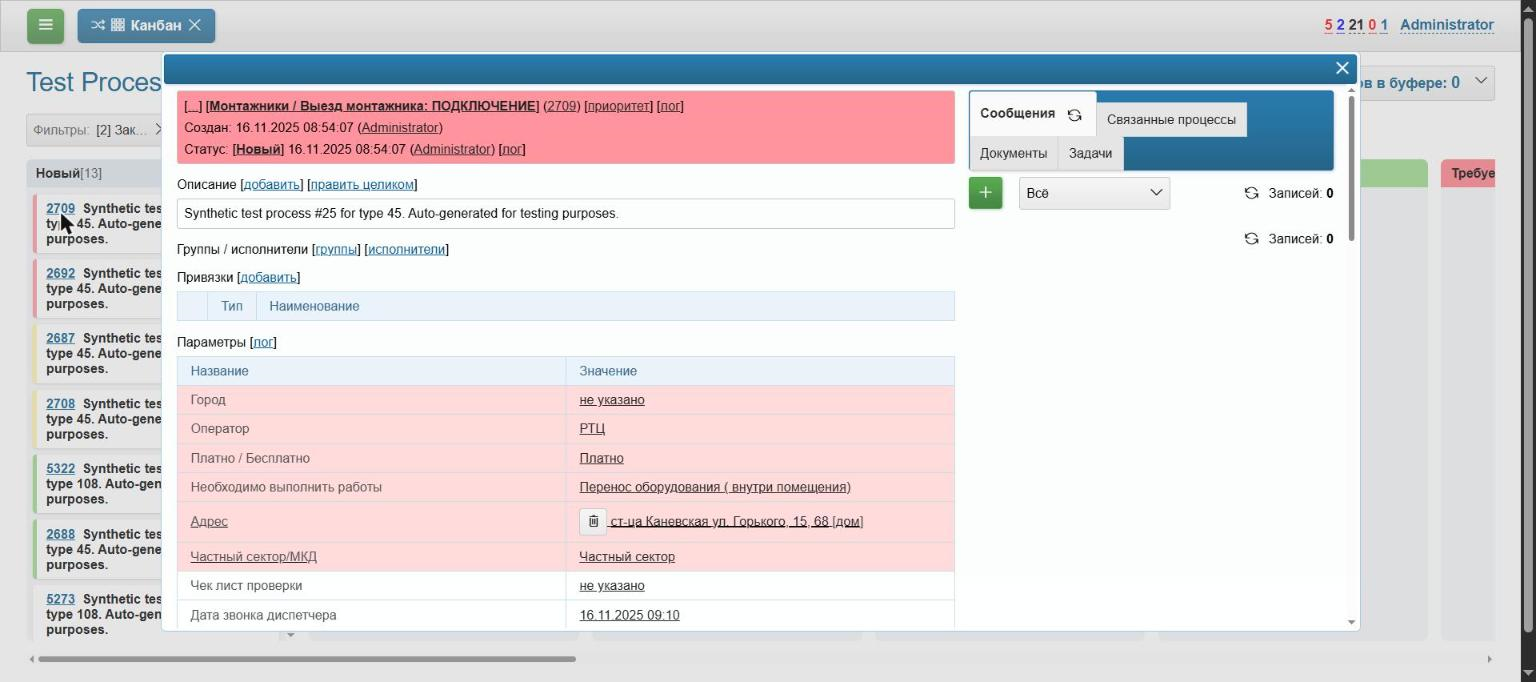
Process Preview
By default, clicking a card’s ID opens the full process view in a modal dialog over the board, instead of navigating away from it - closing the dialog leaves the board exactly as it was. This can be turned off globally, falling back to normal full-page navigation:
kanban:preview.enable=0
Column Colors
The process status catalog carries no color of its own, so Kanban colors columns using a small default palette cycled by column position. Palette entries can be overridden, same as process.priority.<PRIORITY>.color config keys:
kanban:palette.<POS>.color=<HEX_COLOR>
Specific statuses can be given their own color instead:
kanban:status.<STATUS_ID>.color=<HEX_COLOR>
Both the palette and specific status colors can also be overridden per queue (each board shows a single queue), taking priority over the global settings above:
kanban:queue.<QUEUE_ID>.palette.<POS>.color=<HEX_COLOR>
kanban:queue.<QUEUE_ID>.status.<STATUS_ID>.color=<HEX_COLOR>
Usage
Queue and Type Selection
Pick any accessible queue from the Queue combo - the same list offered by Process Queues. If the queue spans more than one process type and its own configuration includes a type filter, a single-value Type selector appears (unlike the regular queue table’s own multi-select type filter): a board’s columns are always exactly one process type’s status list, since the transition matrix and required-parameter rules are per-type. If the queue only has one process type, the type is picked automatically and no selector is shown.

Filters
The filter panel ("Filters") is entirely driven by the selected queue’s own filter configuration - the same filters (open/ closed, status, parameters, dates, etc.) available on the queue’s regular table view are available here, toggled on and off through the same "Filters: [N]" selector, remembered per queue. Sorting uses the same sort combos configured on the queue.

Board
Columns come from the selected process type’s own configured status list, in its configured order - not merely the statuses seen among the currently filtered processes, so a status with zero matching processes still shows up as an (empty) column. Cards show the process ID/link, description, priority color and executors.
Drag and Drop
Dragging a card to another column requests that status change through the process' own status-change action, exactly as clicking the status dropdown on the regular process view would.
Process Preview
Clicking a card’s ID (when enabled) opens the process in a modal dialog with everything the full process view offers - status, comments, parameters, links - without leaving the board.